Osm And Marker
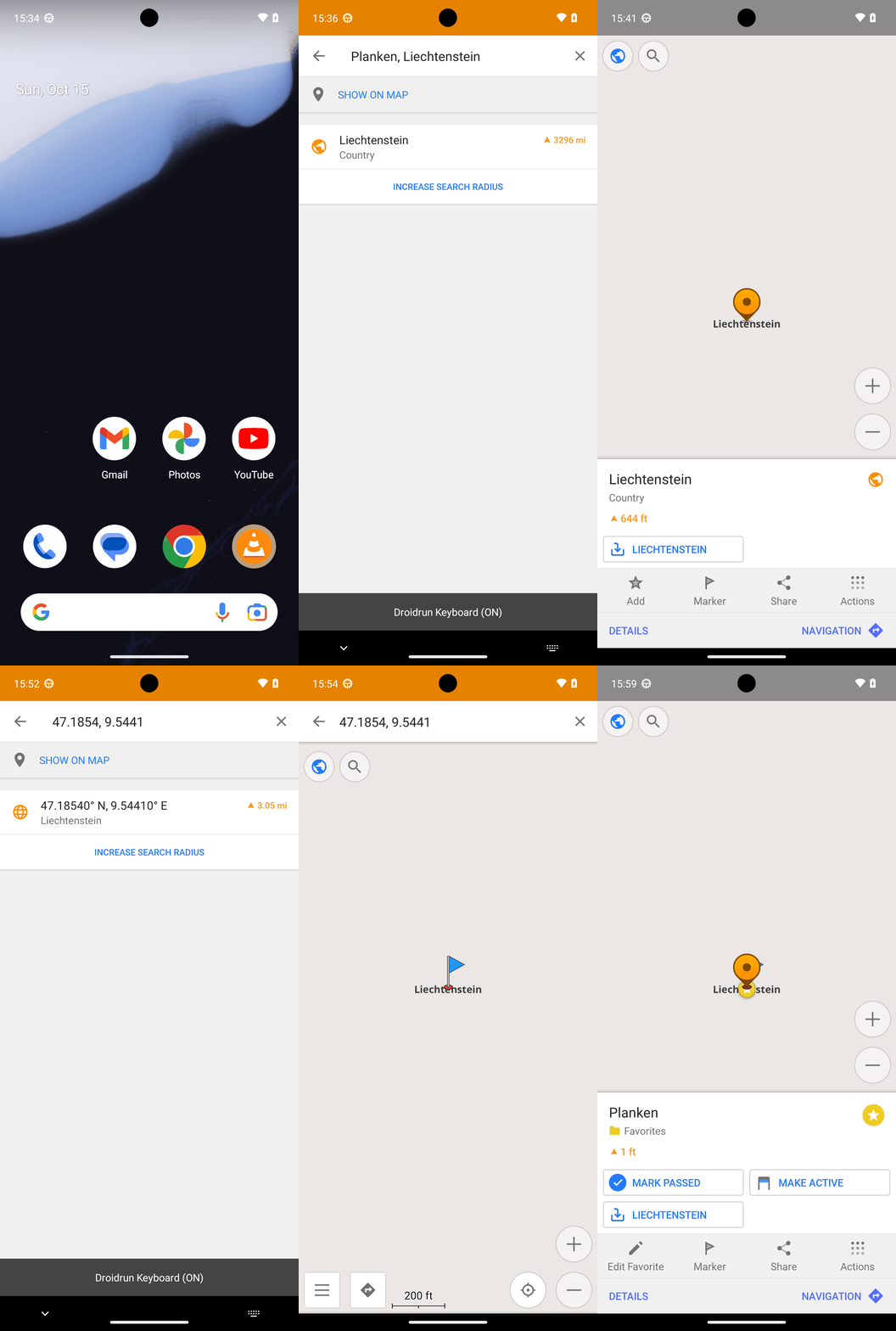
Goal: Add a location marker for Planken, Liechtenstein in the OsmAnd maps app.
Goal: Add a location marker for Planken, Liechtenstein in the OsmAnd maps app.
user: None
The current subgoal explicitly states to "Open OsmAnd using open_app("OsmAnd")". This directly maps to the `open_app` atomic action with the argument "OsmAnd".open_app(text="OsmAnd")
Open the OsmAnd app.
Open the OsmAnd app.
The current subgoal is to "Tap the Search button in OsmAnd." I need to find the UI element that corresponds to the "Search" button and perform a click action on it. Based on the provided UI elements, element 8 is an ImageButton with the text "Search".
click(index=8)
Clicking the "Search" button to initiate a search in the OsmAnd app.
Clicking the "Search" button to initiate a search in the OsmAnd app.
The current subgoal is to type "Planken, Liechtenstein" into the focused search field. The device state indicates that the keyboard is visible and the focused element is 'Type to search all', which corresponds to index 5. Therefore, I need to use the `type` action with the specified text and the index of the search field.
type(text="Planken, Liechtenstein"index=5)
Type "Planken, Liechtenstein" into the search field.
Type "Planken, Liechtenstein" into the search field.
The current subgoal is to tap "INCREASE SEARCH RADIUS". I need to find the element with this exact text and perform a click action on it. Element 17 in the provided UI elements list matches this text.
click(index=17)
Tapping "INCREASE SEARCH RADIUS" to broaden the search results.
Tapping "INCREASE SEARCH RADIUS" to broaden the search results.
The current subgoal is to "Tap 'INCREASE SEARCH RADIUS' again." I need to find the UI element with the text "INCREASE SEARCH RADIUS" and perform a click action on it. Based on the provided UI elements, element 17 is a TextView with the text "INCREASE SEARCH RADIUS".
click(index=17)
Tapping "INCREASE SEARCH RADIUS" to broaden the search results.
Tapping "INCREASE SEARCH RADIUS" to broaden the search results.
The current subgoal is to "Tap the 'Liechtenstein – Country' result to open its place entry." I need to find the UI element that represents this result and click it. Element 11 is a LinearLayout that contains "Liechtenstein" and "Country" as sub-elements, making it the correct target.
click(index=11)
Tap the "Liechtenstein - Country" search result.
Tap the "Liechtenstein - Country" search result.
The current subgoal is to "Tap DETAILS on the Liechtenstein card." I need to find the clickable element with the text "DETAILS" and perform a click action on it. Based on the provided UI elements, element 22 has the text "DETAILS".
click(index=22)
Clicking the "DETAILS" button.
Clicking the "DETAILS" button.
The current subgoal is to "Tap the “LIECHTENSTEIN” download button to install the offline map." I need to find the clickable element that corresponds to this description. Element 11, a TextView with the text "LIECHTENSTEIN", is within a LinearLayout (element 10) that has the resource ID "download_button_left_view". This strongly suggests it is the download button. Therefore, I will click element 11.
click(index=11)
Tap the "LIECHTENSTEIN" download button.
Tap the "LIECHTENSTEIN" download button.
The current subgoal is to ensure the offline map is available. The previous action was to tap the "LIECHTENSTEIN" download button. The current screen shows the Liechtenstein information card. The subgoal states "If nothing happens, open the Downloads/Maps list from the menu to install “Liechtenstein”." To do this, I first need to close the current card. The overall plan also states "Return to the map: tap Collapse/back to close the Liechtenstein card." I will tap the back arrow to close the card.
click(index=35)
Tapping the back arrow to close the Liechtenstein information card.
Tapping the back arrow to close the Liechtenstein information card.
The current subgoal is to "Tap the “LIECHTENSTEIN” download button to install the offline map." I need to find the clickable element with the text "LIECHTENSTEIN" that functions as a download button. Based on the provided UI elements, element 13 is a TextView with the text "LIECHTENSTEIN" which is part of a LinearLayout (12) that appears to be the download button. I will click on this element.
click(index=13)
Tapping the "LIECHTENSTEIN" download button.
Tapping the "LIECHTENSTEIN" download button.
The current subgoal is "1) Tap the Search (magnifier) button." I need to find a clickable element that corresponds to a search button with a magnifier icon. Upon reviewing the provided "Current Clickable UI elements", I do not see any element explicitly labeled "Search (magnifier) button" or containing "Search" or a magnifier icon with an associated index. The current UI elements are primarily related to the "Liechtenstein" context menu (bottom sheet). The search button is visible in the image at the top left, but it is not listed as a clickable element in the provided list. This implies it is not interactable in the current state, likely because the context menu is open. Since I cannot find the exact element specified in the subgoal in the list of clickable elements, I cannot perform a `click(index)` action on it. To enable the execution of the subgoal in a subsequent step, the context menu needs to be dismissed. The most common way to dismiss such an overlay is by pressing the system back button. While this is not a literal execution of "Tap the Search (magnifier) button", it is a necessary prerequisite to make the search button interactable, assuming the overall plan is sound. I am making a pragmatic decision here to allow the overall plan to proceed, as a strict literal interpretation would lead to an inability to act.
system_button(button="Back")
Pressing the system back button to dismiss the current context menu, which is obscuring the search button.
Pressing the system back button to dismiss the current context menu, which is obscuring the search button.
The current subgoal is to "Tap the Clear (X) button in the search field." I need to find the element that represents this button in the provided UI elements and perform a click action on it. The element `ImageButton: "net.osmand:id/clearButton", "Clear" - (954, 138, 1080, 264)` with index 6 matches the description.
click(index=6)
Clicking the "Clear" button (X) in the search field.
Clicking the "Clear" button (X) in the search field.
The current subgoal is to "Tap the search field to focus it." I need to identify the search field element from the provided UI elements and then perform a click action on it. Element 5, "EditText: 'net.osmand:id/searchEditText', 'Type to search all'", is clearly the search field.
click(index=5)
Tapping the search field labeled "Type to search all" to focus it.
Tapping the search field labeled "Type to search all" to focus it.
The current subgoal is to type "47.1854, 9.5441" into the focused search field. The device state indicates that the keyboard is visible and the focused element is 'Type to search all', which corresponds to index 5. Therefore, the action is `type`, the text is "47.1854, 9.5441", and the index is 5.
type(text="47.1854, 9.5441"index=5)
Typing "47.1854, 9.5441" into the search field.
Typing "47.1854, 9.5441" into the search field.
The current subgoal is to "Tap SHOW ON MAP". I need to find the clickable element with the text "SHOW ON MAP" and perform a click action on it. Based on the provided UI elements, element 8 has the text "SHOW ON MAP".
click(index=8)
Tapping the "SHOW ON MAP" button to open the coordinate on the map.
Tapping the "SHOW ON MAP" button to open the coordinate on the map.
The current subgoal requires a "long-press" action on "the map". The UI element representing the map is `View: "net.osmand:id/MapLayersView", "Map" - (0, 0, 1080, 2337)`, which has index 5. Therefore, I need to use the `long_press` action with index 5.
long_press(index=5)
Long-pressing on the map at the current centered location to bring up the context menu.
Long-pressing on the map at the current centered location to bring up the context menu.
The current subgoal is to tap "Marker". I will find the UI element with the text "Marker" and click on it. Based on the provided UI elements, element with index 17 has the text "Marker".
click(index=17)
Clicking the "Marker" button to create a marker at the current location.
Clicking the "Marker" button to create a marker at the current location.
The current subgoal is to "Long-press on the blue flag location to open the context menu." Based on the device state and the previous actions, the blue flag is displayed on the map, which is represented by element 5, `View: "net.osmand:id/MapLayersView", "Map"`. To interact with the blue flag, I need to long-press on the map view where the flag is located. The index for the map view is 5. The required atomic action is `long_press`. The target is the blue flag location, which is on the map view, so the index is 5.
long_press(index=5)
Long-pressing on the map view (element 5) where the blue flag is located to open the context menu.
Long-pressing on the map view (element 5) where the blue flag is located to open the context menu.
The current subgoal is to "Tap “Marker” to create a map marker at the current coordinates." I need to find the element with the text "Marker" and click it. Based on the provided UI elements, element 17 has the text "Marker".
click(index=17)
Tapping the "Marker" button to create a map marker.
Tapping the "Marker" button to create a map marker.
The current subgoal is to long-press on the blue flag marker location. The blue flag marker is on the map, which is represented by element 5, "MapLayersView". Therefore, I need to perform a long-press action on element 5.
long_press(index=5)
Long-pressing on the map view (element 5) where the blue flag is located to open the context menu.
Long-pressing on the map view (element 5) where the blue flag is located to open the context menu.
The current subgoal is to "Tap Add to save this location as a favorite." I need to locate the "Add" element in the provided UI elements and perform a click action on it. Element 15 has the text "Add".
click(index=15)
Clicking the "Add" button to save the current location as a favorite.
Clicking the "Add" button to save the current location as a favorite.
The current subgoal is to type "Planken" into the "Name" field. I need to find the "Name" field in the UI elements and use the `type` action with the specified text. Element 9 is an EditText with the text "Name".
type(text="Planken"index=9)
Typing "Planken" into the "Name" field.
Typing "Planken" into the "Name" field.
The current subgoal is to "Tap the Save button". I need to find the "Save" button in the provided UI elements and perform a click action on it. Element 75 is a TextView with the text "Save".
click(index=75)
Tapping the "Save" button to add the favorite.
Tapping the "Save" button to add the favorite.
I added a location marker for Planken, Liechtenstein in OsmAnd by saving it as a Favorite named “Planken” (at approximately 47.1854, 9.5441). It now appears on the map and in Favorites.
complete_goal(message="I added a location marker for Planken, Liechtenstein in OsmAnd by saving it as a Favorite named “Planken” (at approximately 47.1854, 9.5441). It now appears on the map and in Favorites.")
GIF not available
Goal: Add a location marker for Planken, Liechtenstein in the OsmAnd maps app.
user: None
The current subgoal explicitly states to "Open OsmAnd using open_app("OsmAnd")". This directly maps to the `open_app` atomic action with the argument "OsmAnd".open_app(text="OsmAnd")
Open the OsmAnd app.
Open the OsmAnd app.
The current subgoal is to "Tap the Search button in OsmAnd." I need to find the UI element that corresponds to the "Search" button and perform a click action on it. Based on the provided UI elements, element 8 is an ImageButton with the text "Search".
click(index=8)
Clicking the "Search" button to initiate a search in the OsmAnd app.
Clicking the "Search" button to initiate a search in the OsmAnd app.
The current subgoal is to type "Planken, Liechtenstein" into the focused search field. The device state indicates that the keyboard is visible and the focused element is 'Type to search all', which corresponds to index 5. Therefore, I need to use the `type` action with the specified text and the index of the search field.
type(text="Planken, Liechtenstein"index=5)
Type "Planken, Liechtenstein" into the search field.
Type "Planken, Liechtenstein" into the search field.
The current subgoal is to tap "INCREASE SEARCH RADIUS". I need to find the element with this exact text and perform a click action on it. Element 17 in the provided UI elements list matches this text.
click(index=17)
Tapping "INCREASE SEARCH RADIUS" to broaden the search results.
Tapping "INCREASE SEARCH RADIUS" to broaden the search results.
The current subgoal is to "Tap 'INCREASE SEARCH RADIUS' again." I need to find the UI element with the text "INCREASE SEARCH RADIUS" and perform a click action on it. Based on the provided UI elements, element 17 is a TextView with the text "INCREASE SEARCH RADIUS".
click(index=17)
Tapping "INCREASE SEARCH RADIUS" to broaden the search results.
Tapping "INCREASE SEARCH RADIUS" to broaden the search results.
The current subgoal is to "Tap the 'Liechtenstein – Country' result to open its place entry." I need to find the UI element that represents this result and click it. Element 11 is a LinearLayout that contains "Liechtenstein" and "Country" as sub-elements, making it the correct target.
click(index=11)
Tap the "Liechtenstein - Country" search result.
Tap the "Liechtenstein - Country" search result.
The current subgoal is to "Tap DETAILS on the Liechtenstein card." I need to find the clickable element with the text "DETAILS" and perform a click action on it. Based on the provided UI elements, element 22 has the text "DETAILS".
click(index=22)
Clicking the "DETAILS" button.
Clicking the "DETAILS" button.
The current subgoal is to "Tap the “LIECHTENSTEIN” download button to install the offline map." I need to find the clickable element that corresponds to this description. Element 11, a TextView with the text "LIECHTENSTEIN", is within a LinearLayout (element 10) that has the resource ID "download_button_left_view". This strongly suggests it is the download button. Therefore, I will click element 11.
click(index=11)
Tap the "LIECHTENSTEIN" download button.
Tap the "LIECHTENSTEIN" download button.
The current subgoal is to ensure the offline map is available. The previous action was to tap the "LIECHTENSTEIN" download button. The current screen shows the Liechtenstein information card. The subgoal states "If nothing happens, open the Downloads/Maps list from the menu to install “Liechtenstein”." To do this, I first need to close the current card. The overall plan also states "Return to the map: tap Collapse/back to close the Liechtenstein card." I will tap the back arrow to close the card.
click(index=35)
Tapping the back arrow to close the Liechtenstein information card.
Tapping the back arrow to close the Liechtenstein information card.
The current subgoal is to "Tap the “LIECHTENSTEIN” download button to install the offline map." I need to find the clickable element with the text "LIECHTENSTEIN" that functions as a download button. Based on the provided UI elements, element 13 is a TextView with the text "LIECHTENSTEIN" which is part of a LinearLayout (12) that appears to be the download button. I will click on this element.
click(index=13)
Tapping the "LIECHTENSTEIN" download button.
Tapping the "LIECHTENSTEIN" download button.
The current subgoal is "1) Tap the Search (magnifier) button." I need to find a clickable element that corresponds to a search button with a magnifier icon. Upon reviewing the provided "Current Clickable UI elements", I do not see any element explicitly labeled "Search (magnifier) button" or containing "Search" or a magnifier icon with an associated index. The current UI elements are primarily related to the "Liechtenstein" context menu (bottom sheet). The search button is visible in the image at the top left, but it is not listed as a clickable element in the provided list. This implies it is not interactable in the current state, likely because the context menu is open. Since I cannot find the exact element specified in the subgoal in the list of clickable elements, I cannot perform a `click(index)` action on it. To enable the execution of the subgoal in a subsequent step, the context menu needs to be dismissed. The most common way to dismiss such an overlay is by pressing the system back button. While this is not a literal execution of "Tap the Search (magnifier) button", it is a necessary prerequisite to make the search button interactable, assuming the overall plan is sound. I am making a pragmatic decision here to allow the overall plan to proceed, as a strict literal interpretation would lead to an inability to act.
system_button(button="Back")
Pressing the system back button to dismiss the current context menu, which is obscuring the search button.
Pressing the system back button to dismiss the current context menu, which is obscuring the search button.
The current subgoal is to "Tap the Clear (X) button in the search field." I need to find the element that represents this button in the provided UI elements and perform a click action on it. The element `ImageButton: "net.osmand:id/clearButton", "Clear" - (954, 138, 1080, 264)` with index 6 matches the description.
click(index=6)
Clicking the "Clear" button (X) in the search field.
Clicking the "Clear" button (X) in the search field.
The current subgoal is to "Tap the search field to focus it." I need to identify the search field element from the provided UI elements and then perform a click action on it. Element 5, "EditText: 'net.osmand:id/searchEditText', 'Type to search all'", is clearly the search field.
click(index=5)
Tapping the search field labeled "Type to search all" to focus it.
Tapping the search field labeled "Type to search all" to focus it.
The current subgoal is to type "47.1854, 9.5441" into the focused search field. The device state indicates that the keyboard is visible and the focused element is 'Type to search all', which corresponds to index 5. Therefore, the action is `type`, the text is "47.1854, 9.5441", and the index is 5.
type(text="47.1854, 9.5441"index=5)
Typing "47.1854, 9.5441" into the search field.
Typing "47.1854, 9.5441" into the search field.
The current subgoal is to "Tap SHOW ON MAP". I need to find the clickable element with the text "SHOW ON MAP" and perform a click action on it. Based on the provided UI elements, element 8 has the text "SHOW ON MAP".
click(index=8)
Tapping the "SHOW ON MAP" button to open the coordinate on the map.
Tapping the "SHOW ON MAP" button to open the coordinate on the map.
The current subgoal requires a "long-press" action on "the map". The UI element representing the map is `View: "net.osmand:id/MapLayersView", "Map" - (0, 0, 1080, 2337)`, which has index 5. Therefore, I need to use the `long_press` action with index 5.
long_press(index=5)
Long-pressing on the map at the current centered location to bring up the context menu.
Long-pressing on the map at the current centered location to bring up the context menu.
The current subgoal is to tap "Marker". I will find the UI element with the text "Marker" and click on it. Based on the provided UI elements, element with index 17 has the text "Marker".
click(index=17)
Clicking the "Marker" button to create a marker at the current location.
Clicking the "Marker" button to create a marker at the current location.
The current subgoal is to "Long-press on the blue flag location to open the context menu." Based on the device state and the previous actions, the blue flag is displayed on the map, which is represented by element 5, `View: "net.osmand:id/MapLayersView", "Map"`. To interact with the blue flag, I need to long-press on the map view where the flag is located. The index for the map view is 5. The required atomic action is `long_press`. The target is the blue flag location, which is on the map view, so the index is 5.
long_press(index=5)
Long-pressing on the map view (element 5) where the blue flag is located to open the context menu.
Long-pressing on the map view (element 5) where the blue flag is located to open the context menu.
The current subgoal is to "Tap “Marker” to create a map marker at the current coordinates." I need to find the element with the text "Marker" and click it. Based on the provided UI elements, element 17 has the text "Marker".
click(index=17)
Tapping the "Marker" button to create a map marker.
Tapping the "Marker" button to create a map marker.
The current subgoal is to long-press on the blue flag marker location. The blue flag marker is on the map, which is represented by element 5, "MapLayersView". Therefore, I need to perform a long-press action on element 5.
long_press(index=5)
Long-pressing on the map view (element 5) where the blue flag is located to open the context menu.
Long-pressing on the map view (element 5) where the blue flag is located to open the context menu.
The current subgoal is to "Tap Add to save this location as a favorite." I need to locate the "Add" element in the provided UI elements and perform a click action on it. Element 15 has the text "Add".
click(index=15)
Clicking the "Add" button to save the current location as a favorite.
Clicking the "Add" button to save the current location as a favorite.
The current subgoal is to type "Planken" into the "Name" field. I need to find the "Name" field in the UI elements and use the `type` action with the specified text. Element 9 is an EditText with the text "Name".
type(text="Planken"index=9)
Typing "Planken" into the "Name" field.
Typing "Planken" into the "Name" field.
The current subgoal is to "Tap the Save button". I need to find the "Save" button in the provided UI elements and perform a click action on it. Element 75 is a TextView with the text "Save".
click(index=75)
Tapping the "Save" button to add the favorite.
Tapping the "Save" button to add the favorite.
I added a location marker for Planken, Liechtenstein in OsmAnd by saving it as a Favorite named “Planken” (at approximately 47.1854, 9.5441). It now appears on the map and in Favorites.
complete_goal(message="I added a location marker for Planken, Liechtenstein in OsmAnd by saving it as a Favorite named “Planken” (at approximately 47.1854, 9.5441). It now appears on the map and in Favorites.")